Settings Management
System for saving and loading bot configurations
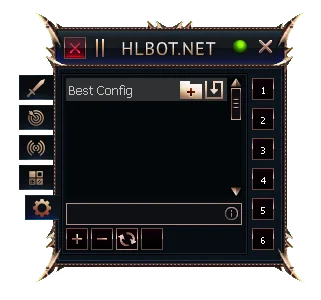
1
Save settings
2
Delete settings
3
Refresh the list of saved settings
4
Use global settings
5
Overwrite settings
6
Load settings
Settings management functions
- Save settings
- Allows saving the current configuration of all bot functions
- You can name the settings profile for easier identification
- Useful for creating different setups for various in-game activities
- Profiles are stored locally on your computer in the /data/config/ folder
- Delete settings
- Lets you remove a selected settings profile from the saved list
- This action is irreversible – deleted settings cannot be restored
- Removes the config file from your computer’s disk
- Refresh the list of saved settings
- Updates the list of available profiles
- Useful after manually adding config files to the bot folder
- Use global settings
- The bot automatically saves every change made in the configuration
- All changes will load automatically when you restart the bot
- Eliminates the need for manual saving/loading
- Useful if you mostly stick to a single configuration
- Overwrite settings
- Replaces an existing profile with the current bot configuration
- Lets you update a previously saved profile after making changes
- Keeps the same profile name without creating a new one
- Load settings
- Loads the selected profile, replacing the current bot configuration
- Instantly applies all settings from the chosen profile
- Allows quick switching between different setups
- After loading, you can still modify the settings as needed
Tip
Create separate settings profiles for different tasks, e.g. "Metin farming", "Boss farming", "Mining" – this allows you to quickly switch between activities without reconfiguring everything manually.