General Information
Some useful information about the bot
Hotkeys
The bot has a few hotkeys such as:
- Insert - Show/hide the bot window
- Shift + W - Use the boost function (must be active)
- Right Mouse Button - By right-clicking on a function’s button you will open its settings window.
Main bot window
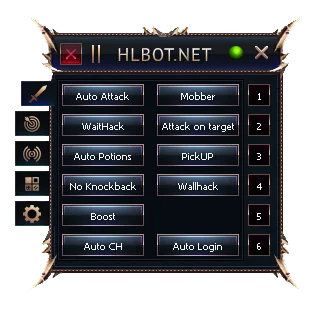
1
Immediately close the game client
2
Stop all bot functions (except detectors)
3
Detection history
4
Close window
5
Quick game channel change
6
General
7
Farming
8
Detectors
9
Others
10
Settings
- Close the game
- Clicking this will immediately close the game.
- Stop functions
- When activated, the bot will stop all functions except detectors.
- Detection history
- Shows info about the last detection events.
| Status | Meaning |
|---|---|
| 🔴 | HLBot detected something in the last 60 seconds. |
| 🟡 | HLBot detected something in the last 5 minutes. |
| 🟢 | No detections in the last 10 minutes. |
- Close window
- Clicking this hides the HLBot window. You can bring it back with the Insert key.
- By pressing CTRL + LMB you can ‘deinject’ HLBot from the game client. This lets you close the launcher or even completely delete the bot files.
- Channel list
- Clicking a button changes the game channel to the selected one.
- Additional settings for these buttons can be found inside the AutoCH function.
- 6. General
- 7. Farming
- 8. Detectors
- 9. Others
- 10. Settings
In this tab you can find the bot’s basic functions.
A detailed description of each function can be found Here
In this tab you can find functions useful for farming automation.
A detailed description of each function can be found Here
In this tab you can find functions that increase safety by detecting specific things and threats.
A detailed description of each function can be found Here
In this tab you can find other functions of the bot.
A detailed description of each function can be found Here
In this tab you can manage bot settings and save ready-made configurations.
A detailed description of each function can be found Here